
Manage safety characteristics
A safety characteristic is a question the applicable standards ask about your product: does it deliver energy, does it contact tissue, does it process patient data. Answering each one, with evidence, is how you find the hazards you would otherwise have to think of unaided. This is the first activity in a risk assessment.
What goes in each field
| Field | What goes in it |
|---|---|
| Description | The characteristic itself. Usually already filled in when the item is cloned or imported. |
| Source | The standard or reference the characteristic comes from, chosen from ISO 14971, ISO TR 24971, TIR 34971, TIR 57, and IEC 60601-1. |
| Evidence summary | Why the characteristic applies to your product. Required in practice before you move the item to Applicable. |
| Justification | Why the characteristic does not apply. Required before the item will move to Not applicable. |
| Evidence | Links to the controlled documents that carry the proof, whichever way you ruled. |
| Related design input | The design inputs that answer this characteristic, where they exist. |
| Assignee | Who is working on this characteristic. Not mandatory, and worth setting anyway so a half-finished register shows who to ask. |
The three statuses a characteristic moves through, and the rule that a ruling locks the item, are described under Key concepts.
Create safety characteristics
- In Jira, open the space and go to the Safety Risk page.
- Open the Safety Characteristics table. It lists everything already in the register, and filters by source, assignee, and status.
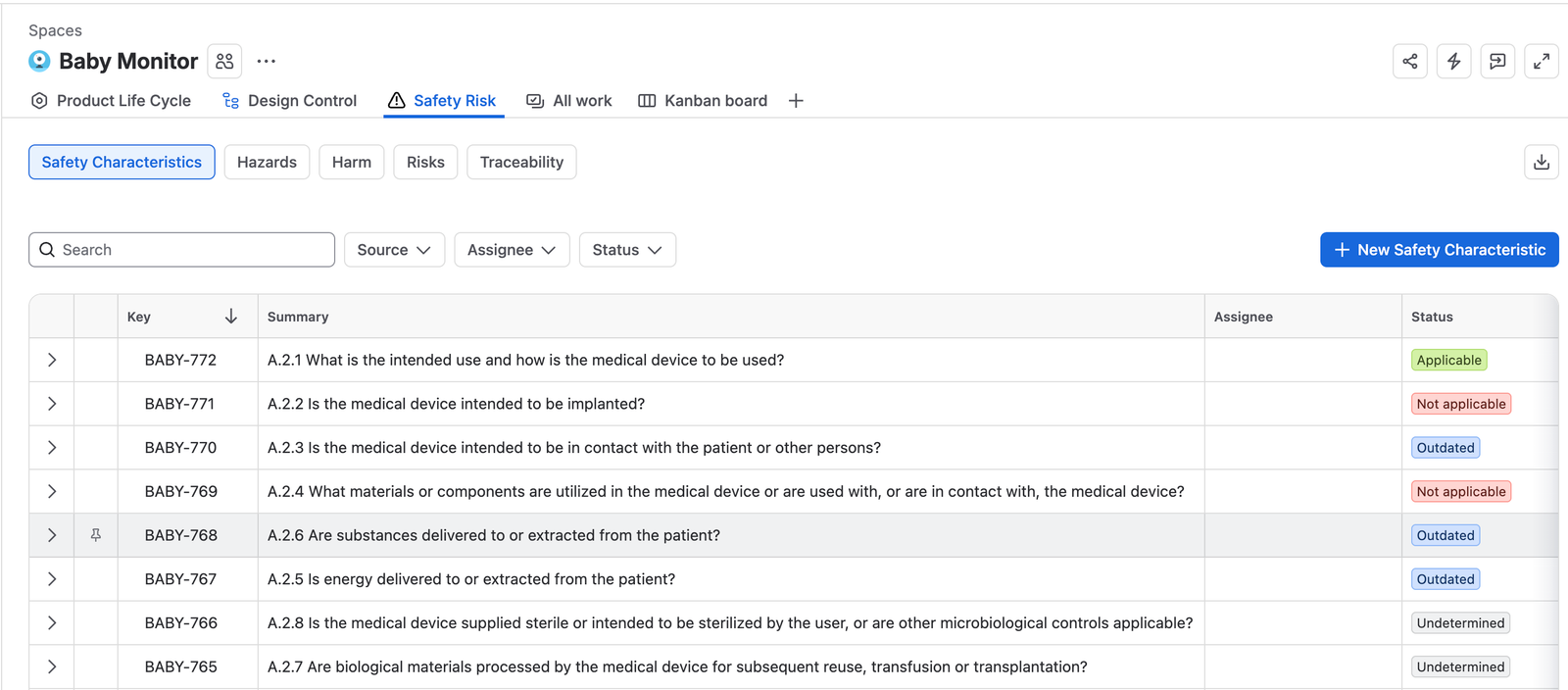
The Safety Characteristics tab, listing characteristics as the questions the standards ask, each with a status of Applicable, Not applicable, Outdated, or Undetermined. - Click + New Safety Characteristic to add one by hand, fill in the Summary and Description, then click Create.
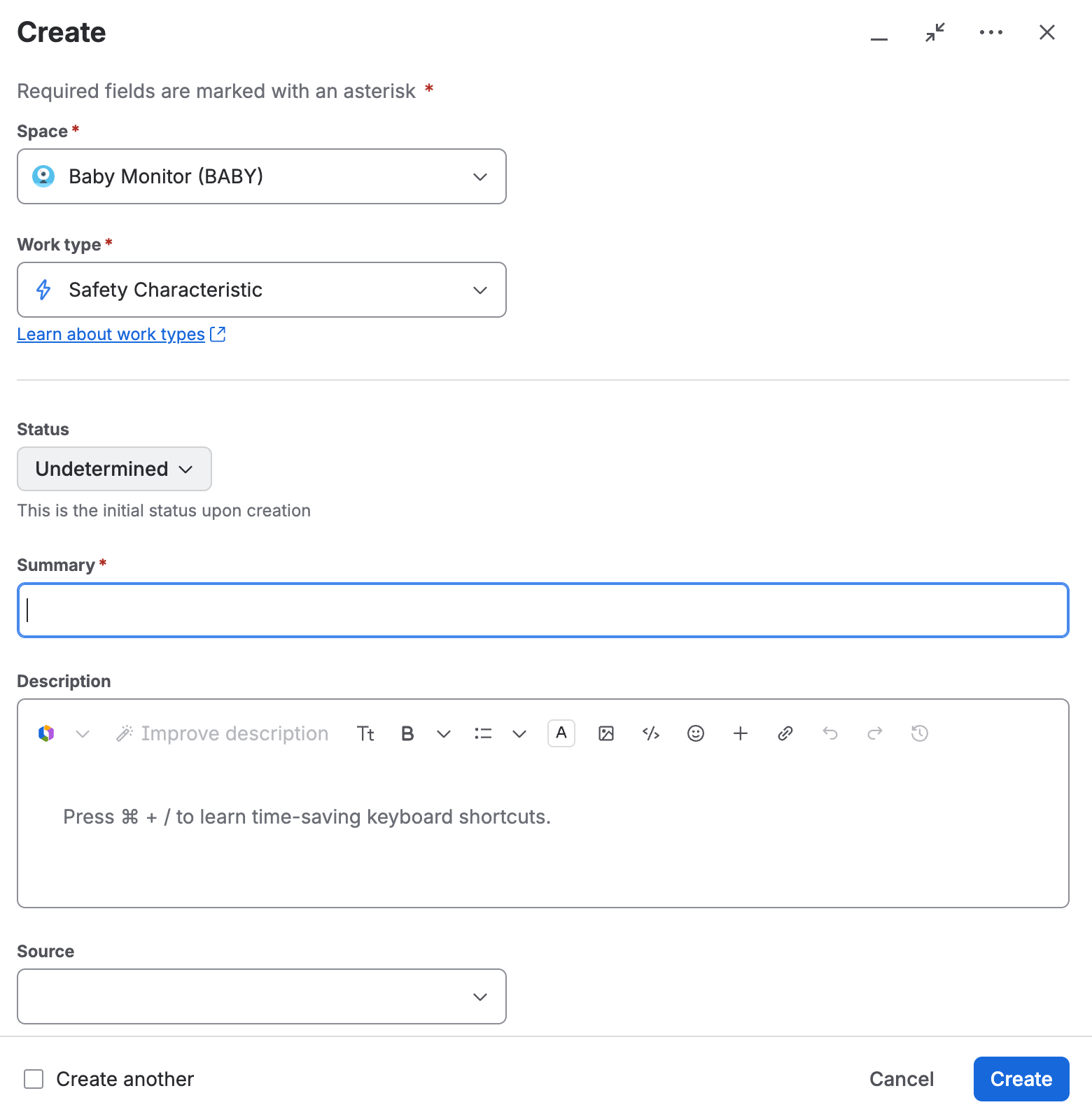
The create dialog, with the work type set to Safety Characteristic and the status showing Undetermined, labelled as the initial status upon creation. - To build the list in bulk instead, upload the characteristics from a CSV file, or clone them from the Standard & Regulations space.Cloning is the usual route. The Standard & Regulations space holds the characteristics the standards ask about, so cloning gives you the full set to rule on rather than a list you have to remember to write.
Review a safety characteristic and rule on it
- In the Safety Characteristics table, select the characteristic you are ruling on.
- Read the Description and decide whether it applies to your product.
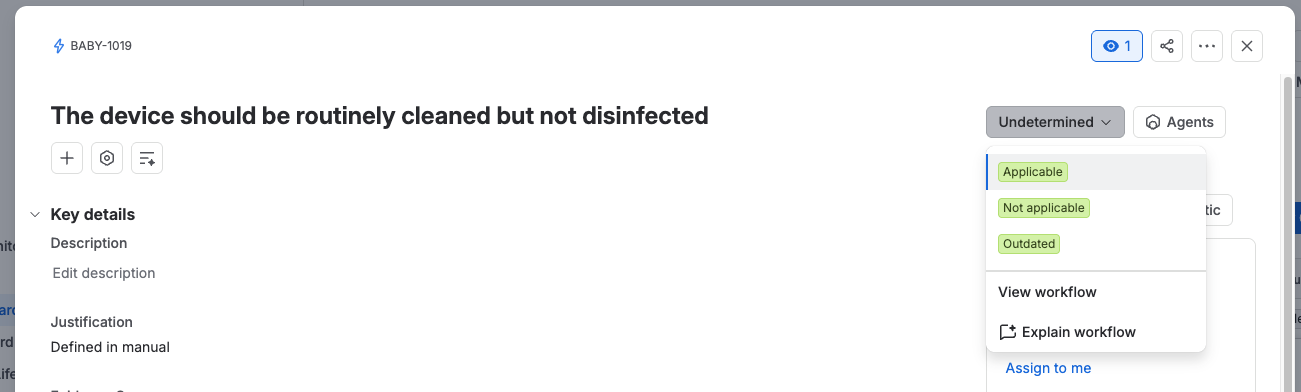
A safety characteristic open at Undetermined, with its description and justification on the left and the status dropdown offering Applicable, Not applicable, and Outdated. - If it applies, fill in the Evidence summary with why, and use Evidence and Related design input to point at the proof. Then move it to Applicable.
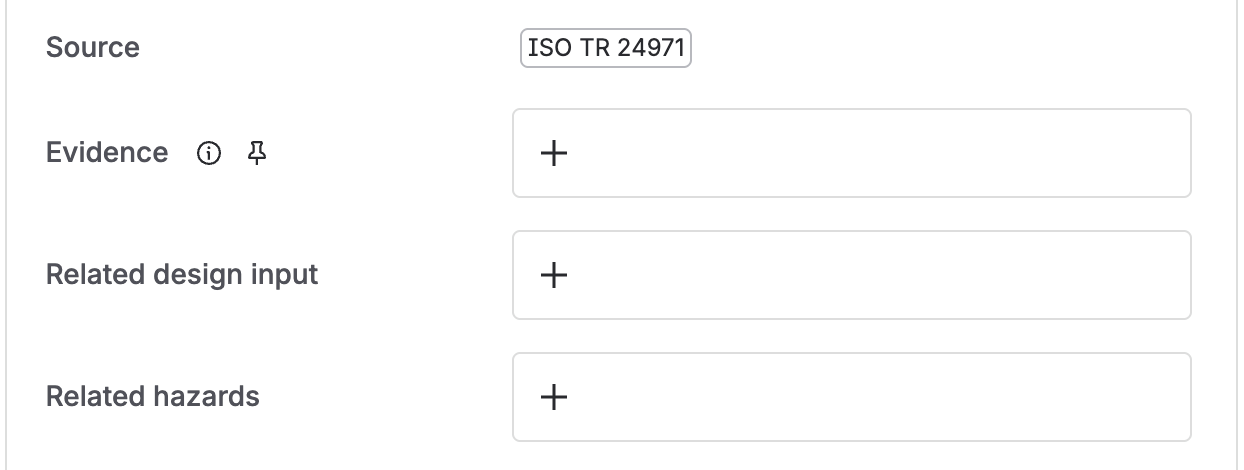
The link fields on a safety characteristic: the Source it came from, Evidence, Related design input, and Related hazards. - If it does not apply, fill in the Justification with why not, and again use Evidence and Related design input where you have them. Then move it to Not applicable.The Justification has to be filled in before this transition will run.
Both answers need writing down. A characteristic ruled Not applicable with no justification is the gap an auditor finds first, because it is indistinguishable from one nobody looked at.
Revise a characteristic you have already ruled on
- Open the characteristic and move it to Outdated. This works from any status.
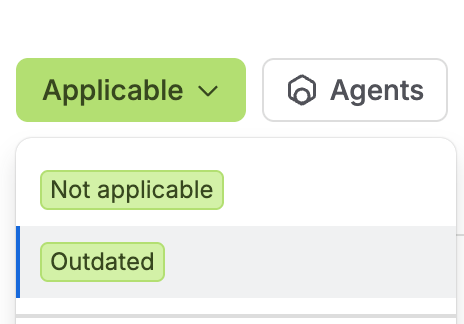
The status dropdown on a characteristic already ruled Applicable, offering only Not applicable and Outdated. - Revise the content.
- Move it back to Applicable or Not applicable, whichever the revision supports.
Export safety characteristics to a controlled document
- In Confluence, open the Draft Documents space and create a document of type Safety Characteristic for your product. See Create a document or template for the wizard.
- Complete the document, following the instructions written into the template.
- Take it through approval in Document Control. See Review and approve a document.
- Link the approved document back to each safety characteristic, using the Evidence field.
Where the document uses the Static Jira content macro to pull the characteristics in, the macro also writes a CSV of the same content and attaches it to the page. The attachment travels with the approved version, so the data behind the document is recoverable without going back to Jira.
When the set is complete
- Every applicable safety characteristic is in the register.
- Every characteristic has been reviewed and sits in the right status.
- Every evidence summary and justification is filled in.
- The set has been approved in Document Control.